
You can disable link exchange for any of your websites using one of three convenient methods. Follow the steps below for your preferred approach:
Method 1: From the website list
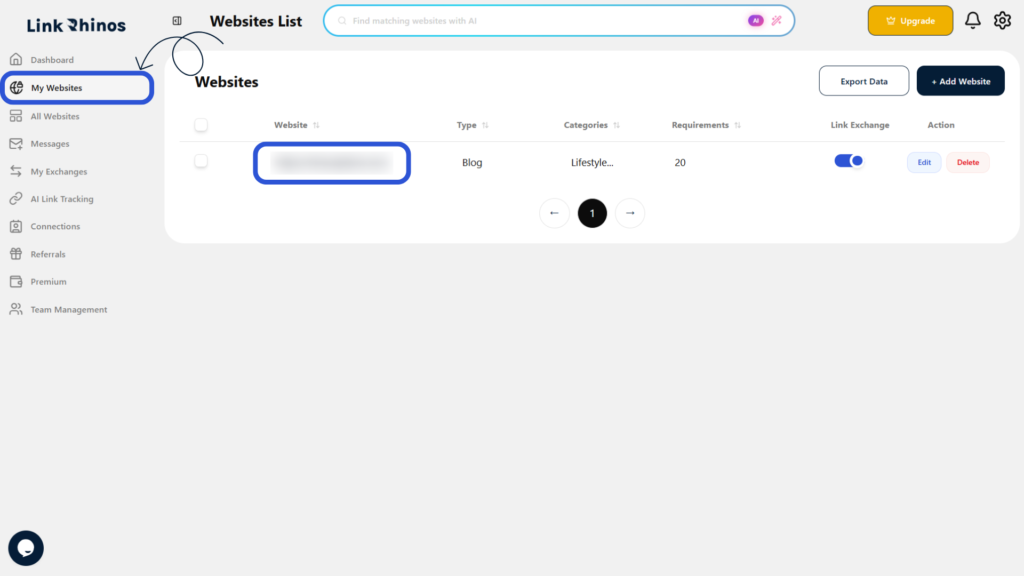
1: Go to My Websites
Navigate to the “My Websites” section from your main dashboard menu.
2: Locate the Website
Find the website for which you want to disable link exchange.
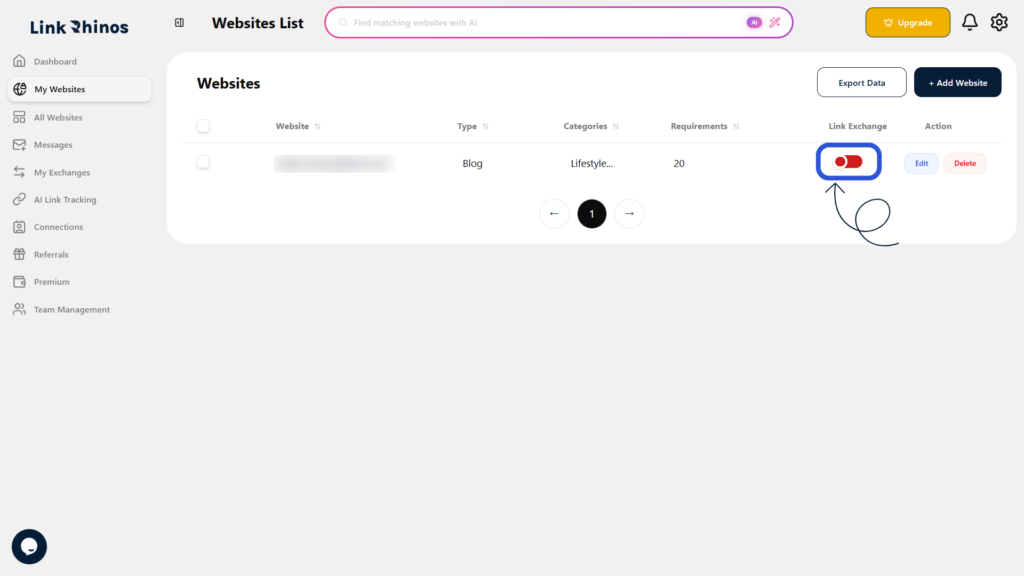
3: Turn OFF the Toggle
In the Link Exchange column, simply turn the toggle to the OFF position.
Method 2: From the Edit Website option
1: Go to My Websites
Navigate to the “My Websites” section from your main dashboard.
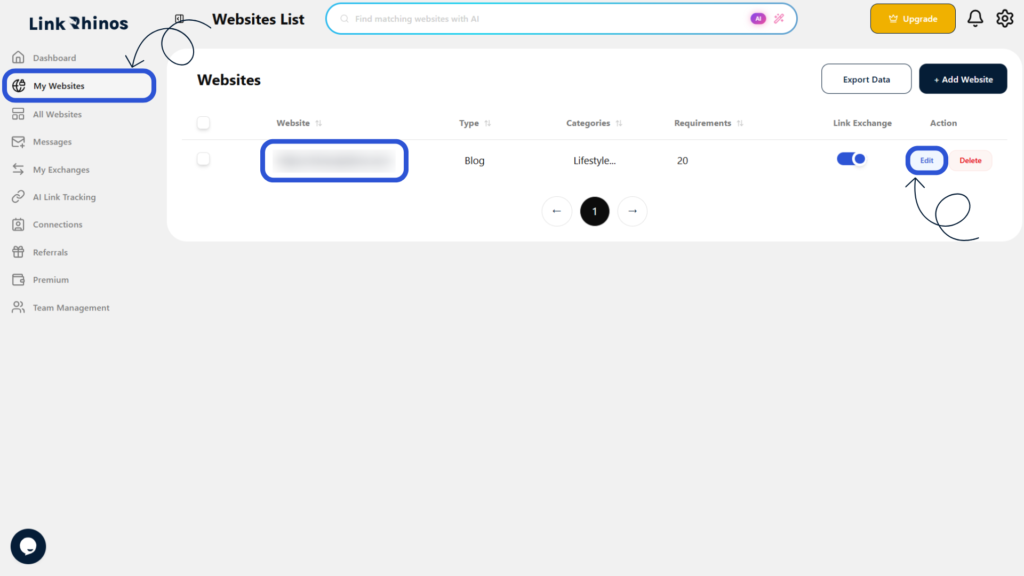
2: Open Edit Option
Locate the website and click on “Edit” in the Action column.
3: Access Link Exchange Setting
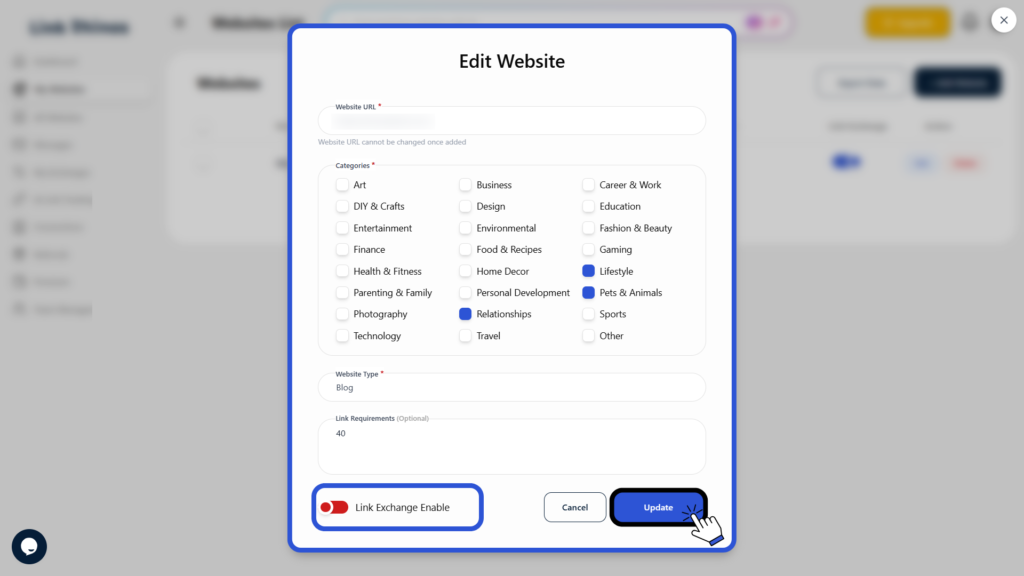
The Edit Website pop-up will open, displaying the “Link Exchange Enabled” toggle.
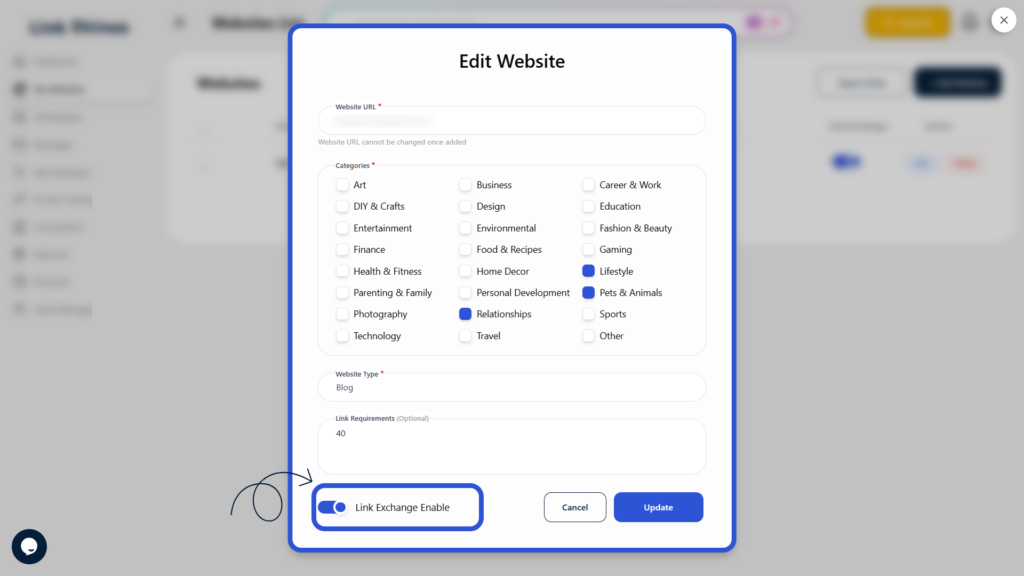
4: Disable and Save
Turn OFF the Link Exchange Enabled toggle and click the “Update” button to apply the changes.
Method 3: From your profile
1: Open Your Profile
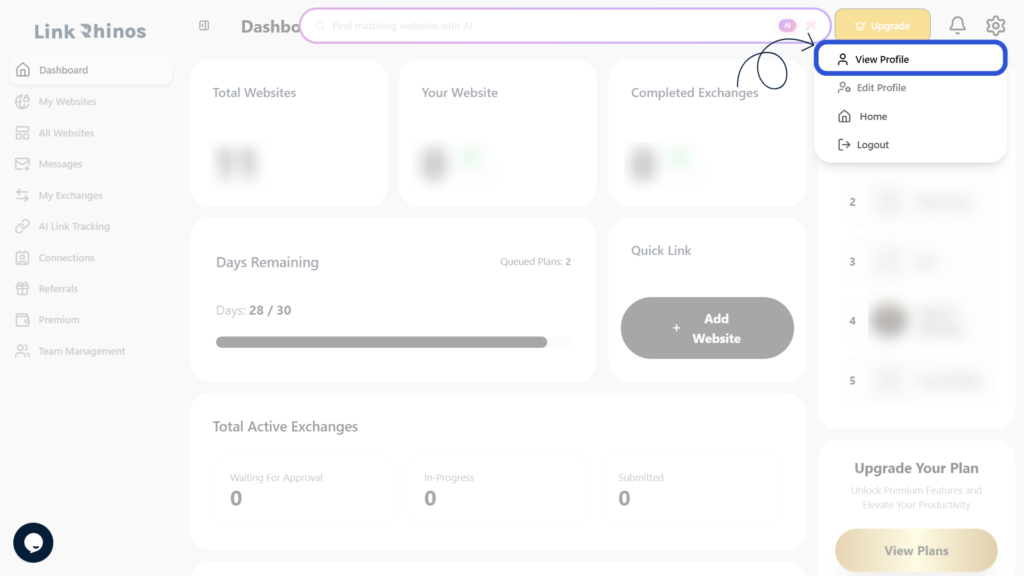
Click on your profile icon to access your profile page.
2: Find Website List Section
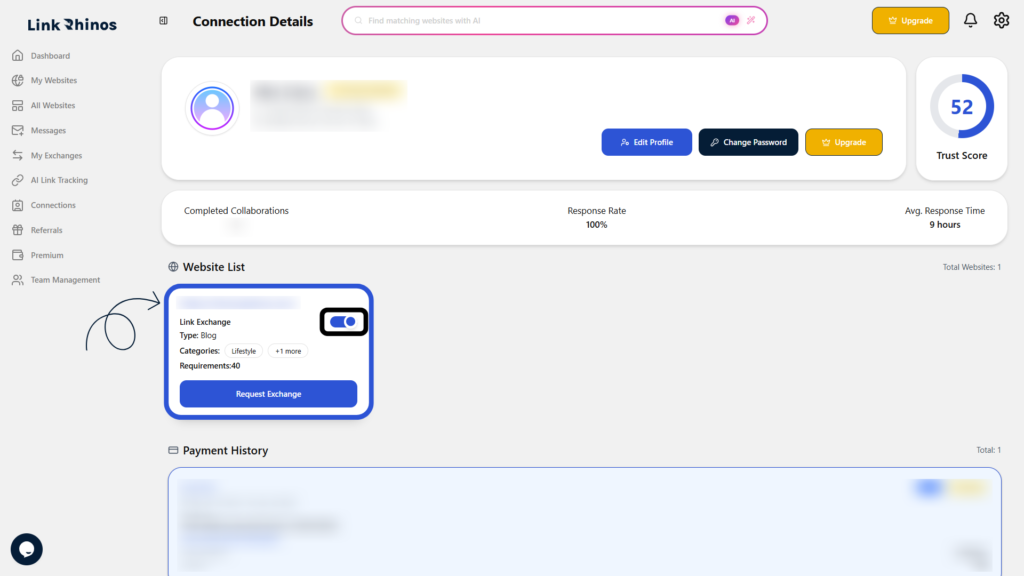
Scroll down to the “Website List” section within your profile.
3: Locate the Website
Find the website you want to modify in the list.
4: Turn OFF the Toggle
On the website card, locate the Link Exchange toggle and switch it to the OFF position.
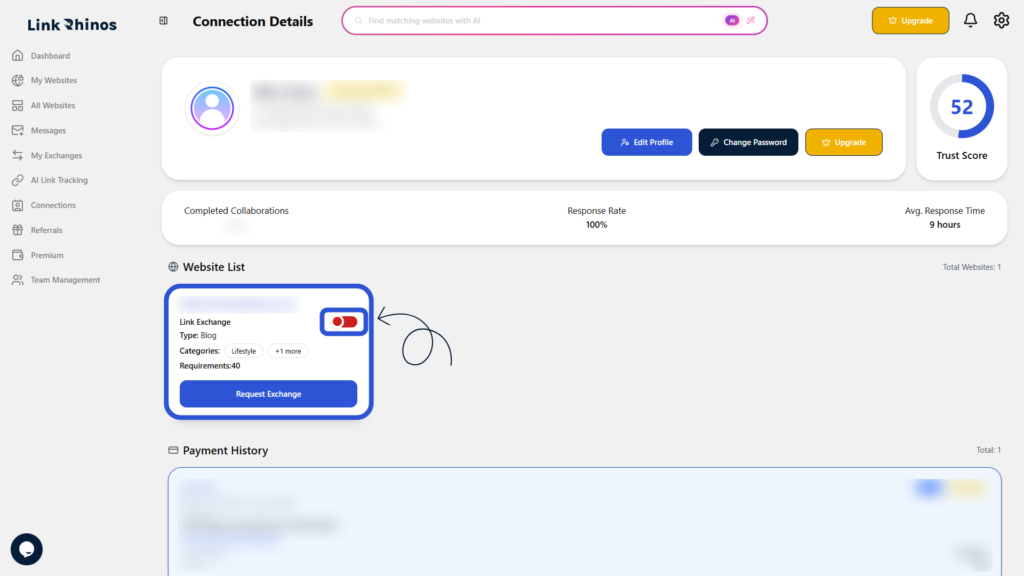
Once disabled, link exchange will no longer be active for that website, and it will not participate in future link exchanges. You can re-enable it anytime by following the same steps and turning the toggle back ON.