help.linkrhinos.com
Go to App
Home>Knowledge Base>Account>How can I activate or deactivate a team member?

How can I activate or deactivate a team member?

Alex Carry
Alex Carry Updated 2 months ago
1 min read

Only the admin (root user) has permission to activate or deactivate team members. Follow these steps to change a member’s status:

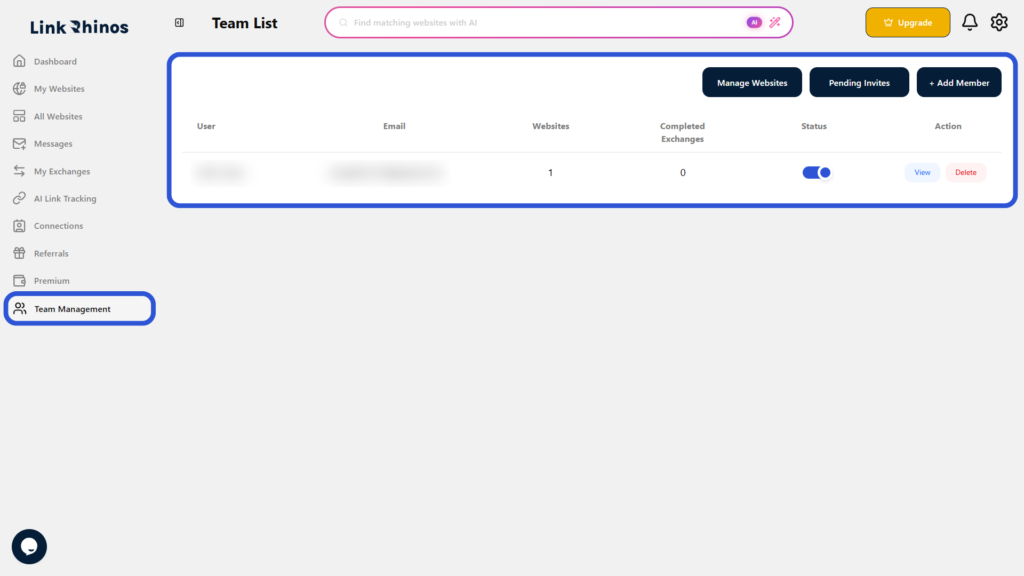
1: Go to Team Management

Navigate to the “Team Management” section from your main dashboard menu and locate the team member in the list.
2: Use the Status Toggle

Click the Status toggle switch to activate or deactivate the member as needed.
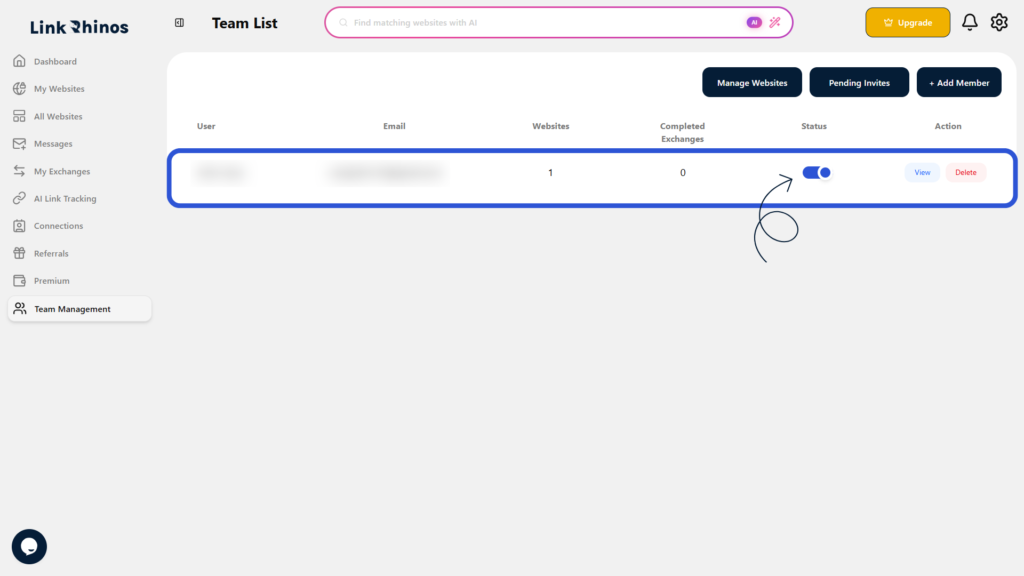
The status change is applied immediately, and the admin will see a confirmation pop-up indicating that the user has been activated or deactivated.

Was this article helpful?

Table of Contents

Related Articles

Can I remove a team member completely?

Account

What should I do if the invited user did not receive the email?

Account

Can I transfer a website from one member to another?

Account

Need more help?

Our support team is available 24/7 to assist you.

Contact Support

© 2026 help.linkrhinos.com. All rights reserved.

  • Contact Support
  • Privacy Policy
  • Terms of Service